If you are not able to erase your writings on your remarkable tab, that can be frustrating. Many remarkable users face problems where the eraser tool stops working, Marker Plus doesn’t work, handwriting annotations doesn’t erase. But don’t worry. This is a fixable issue. In this guide I’ll explain the possible reasons why your remarkable tab is not erasing and how to fix that. Now let’s get started without wasting any time
Make Sure You Have Used The Correct method
First of all, have you tried all the methods of erasing text on Remarkable 2?
Before coming to the conclusion that there is something wrong with your tab, double check that you are using the correct tool. There are several methods to erase what you have written on a page using your stylus pen or Marker Plus.
1. Using the Eraser Tool
- Open the Tools Menu
- Select the “Eraser” option.
- Erase with the Pen
- Using your pen, simply move it over the writing you want to erase.
2. Using the second option – “Erase Selection”
Select the text by drawing a boundary around it like the image below, and the selected text will be erased.

3. Using the third option – “Erase All”
This option will erase the entire page.
4. Using the Marker Plus Eraser (Back tip of the pen)
If you have the remarkable Marker Plus pen, you can use the other end of the pen as an eraser. Yes, this pen has a built-in eraser on the back, but the non pro version doesn’t have an eraser. Simply flip the pen and erase like an actual pencil eraser.
If Erasing still doesn’t work Try These Fixes
If you can’t erase using any of the methods above, then you should try the following methods, they might help
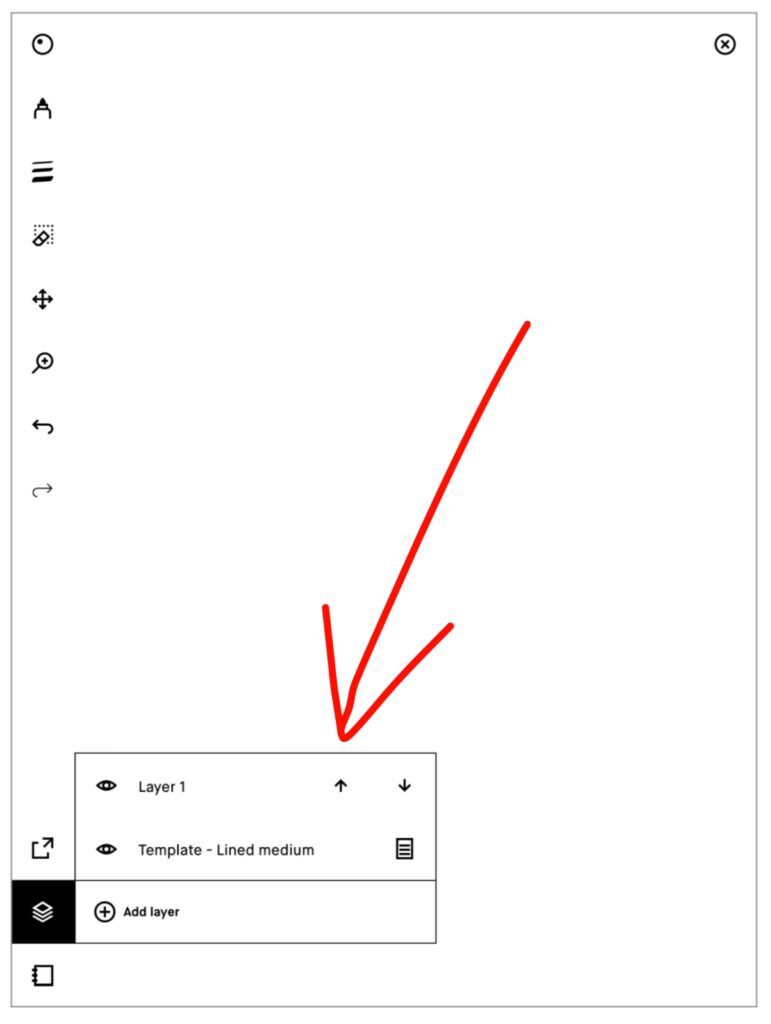
1. Changing layers
Maybe you are writing on a new layer that is why writings on the previous layer aren’t getting erased. the text on the old layer will still be visible.
- Click on the layers tab and check how many layers you are using
- Go back to the old layer and you’ll be able to erase your handwriting,
This issue arises because writing on a new layer doesn’t affect the previous one, but the previous layer’s content is still visible, causing confusion. To avoid this, Just make sure you are on the correct layer.
2. If the remarkable Marker Plus Pen is not working?
If you are using the Marker Plus stylus, which has a built-in eraser on the back and it’s not working even when you are on the right layer, then try the following fixes –
Make sure the eraser tip is not worn out. Try using the eraser gently on another part of the screen to see if it works.
If the eraser tip is damaged, changing the tip should solve the issue.
Remarkable sells replacement tips so you can get these easily.
3. Restart reMarkable Tab
Restarting the device can fix temporary glitches, anyways restarting won’t harm the device and it’s a good habit to restart any device from time to time. Just hold the power button for a few seconds and select “Restart” from the pop-up menu. After restart try erasing your writings again.
4. Keep the software updated
If there is any bug causing the eraser to not work, these bugs and glitches often gets fixed through software updates. So you can check for updates, go to “Settings” > “General” > “Software” . If an update is available, install it and test the eraser again.
Still Not Working?
If the issue is still not resolved after trying all these fixes, then the problem is related to hardware or something else, and you should contact remarkable customer support in this case.
FAQ
Do I need a subscription for the eraser to work?
You don’t need a subscription, eraser is a built in feature.
Does eraser work on PDFs?
You can erase your own annotations on a pdf but not the original text on it.
That’s it for this guide. Hopefully, it helped you get the eraser working again. If you have any questions or want to share a solution that worked for you, feel free to leave a comment below. I’ll see you in another one.
Related Articles
reMarkable 2 VS reMarkable Paper Pro
How to Convert Handwriting to text on reMarkable?