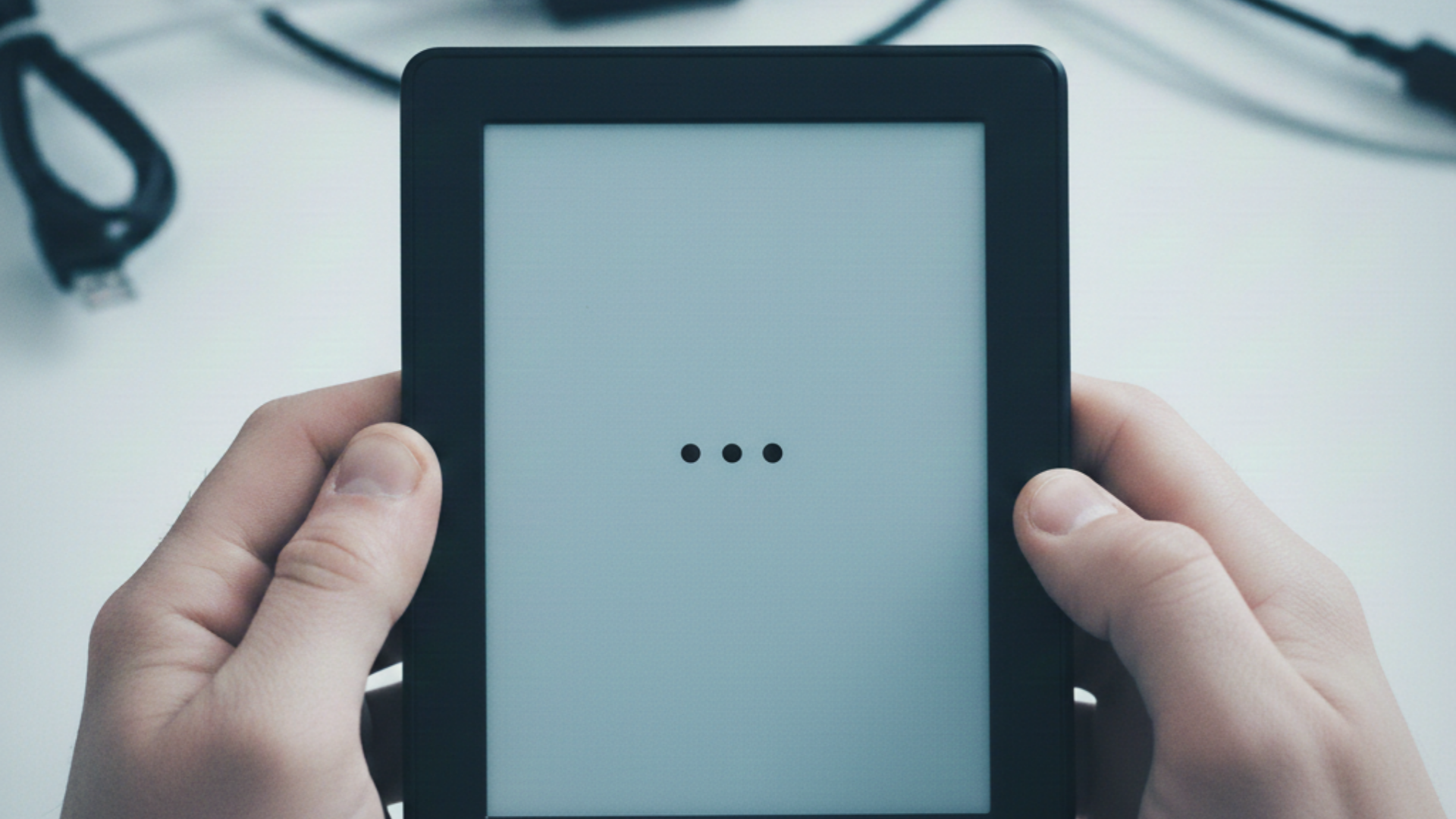
Kobo Stuck On Three Dots (Libra/Clara/Aura)
So, You have a Kobo eReader stuck on 3 dots or maybe stuck on a complete white screen, often called the white screen of death. You might think your device is done for, but that’s not the case. This is a common error, generally occurs when the device is trying to boot up but it can’t due to some glitches. But you can resolve it and I’m going to show you some troubleshooting ways to help you with this, apply these to your Kobo. So, lets get started.
Method 1: Soft reset your Kobo eReader
This is the first thing you should do if your screen is stuck on 3 dots or a white screen. A soft reset can help reboot the device without erasing your data.
Steps to do a soft reset –
- Press and hold the power button for around 10 seconds
- The screen will go black and it will reboot automatically.
- Once the Kobo logo appears, release the power button.
After the soft reset, your device should go back to normal.
Method 2: A force restart
If the soft reset doesn’t work, you can force your Kobo to do a restart. Here is how you do it –
Depending on your Kobo model, there may be a small hole on the back of the device, now get a paperclip or similar sized tool to press it.
Press and hold the button inside the hole for around 10 seconds.
The device should restart now, being back to normal. This might take some time, so please be patient.
Method 3: Charge the eReader fully
Sometimes, a Kobo eReader may seem stuck on three dots or white screen because of low battery. So, you need to plug your charger in and fully charge the device.
- Or you can use a USB cable to plug it into your computer/laptop to charge.
- You can also use a power bank.
Leave it charging for at least 1 hour. Sometimes the device automatically restarts and get back to normal. If it doesn’t, then perform a soft reset as explained in method 1.
Method 4: Factory reset the device
A factory reset deletes all of your data on the Kobo but it can fix system issues like this, including the white screen issue. If you have everything on your cloud account then there’s nothing to worry you can get everything again even after reset. Here is how you can hard reset your Kobo –
If your Kobo has page turn buttons use this method –
- Press and hold a page turn button and the power button together for 30 seconds.
- When the screen blinks and a loading icon appears, release the buttons.
- When prompted, press and hold the power button until the screen blinks again.
- Wait for the device to reset and restart.
After it restarts, set it up again (choose language and connect to Wi-Fi).
If your Kobo doesn’t have page turn buttons use this method –
- Press and hold the power button until the screen says Powered off, then release it.
- Press and hold the power button again. When the light turns off, release it.
- The screen will show Resetting.
- Wait for the reset to finish and the device to restart.
Follow the on-screen setup steps and log in into your account.
Method 5: Contact Kobo support
If You tried everything and it didn’t work, then its time to get in touch with Kobo support team. If your device has hardware issues, you can return or exchange it or they can help you get it fixed.
Conclusion
I know it can be very annoying when your device starts acting strange, getting stuck especially if its a brand new device. Let me know if this guide was of any help. I hope you can continue reading your books without any issues. And please feel free to share your thoughts on this.
Related Posts:
Kindle Slow? 10 Ways To Speed Up Kindle
Send to Kindle – How to send files wirelessly to your Kindle?