If you use a remarkable ereader the handwriting to text feature can be very handy to tur handwritten notes into clean editable text. Both the reMarkable 1 and reMarkable 2 have the handwriting-to-text conversion feature since they run on the same platform. The question is, how to convert handwriting to text on a reMarkable tab, undo it, and how well does it work? In this guide I’ll explain how this works, common errors, and some tips to get the best conversion.
How to convert handwriting to text on reMarkable 2?
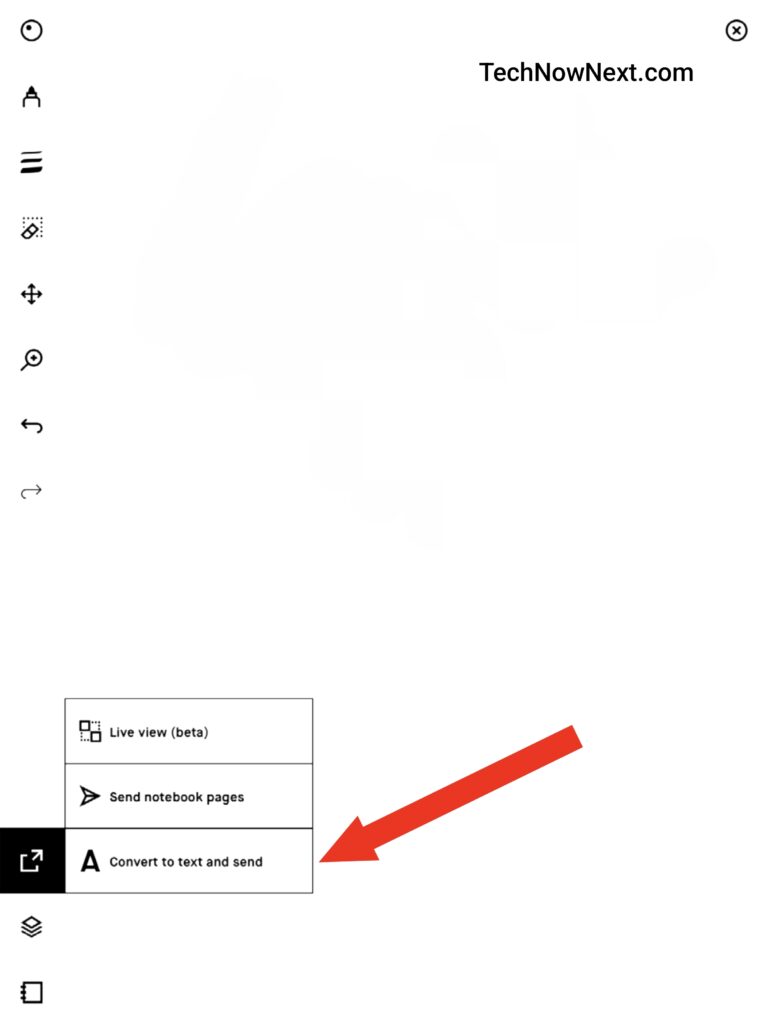
You can convert your writings in a notebook to text on a reMarkable tab, here is how –
- Open a quick sheet and write what you want with your pen, just make sure your handwriting is good enough so that the system can recognize it.
- On the bottom left side of the page, you will find the ‘Send” icon, tap on it and you will see the option to “Convert to text and send”
- A new page will be created with the converted text. And that’s it, you have your text file.
How to convert Multiple pages at once
If you take class notes or anything like that, converting multiple pages at once helps you save time.
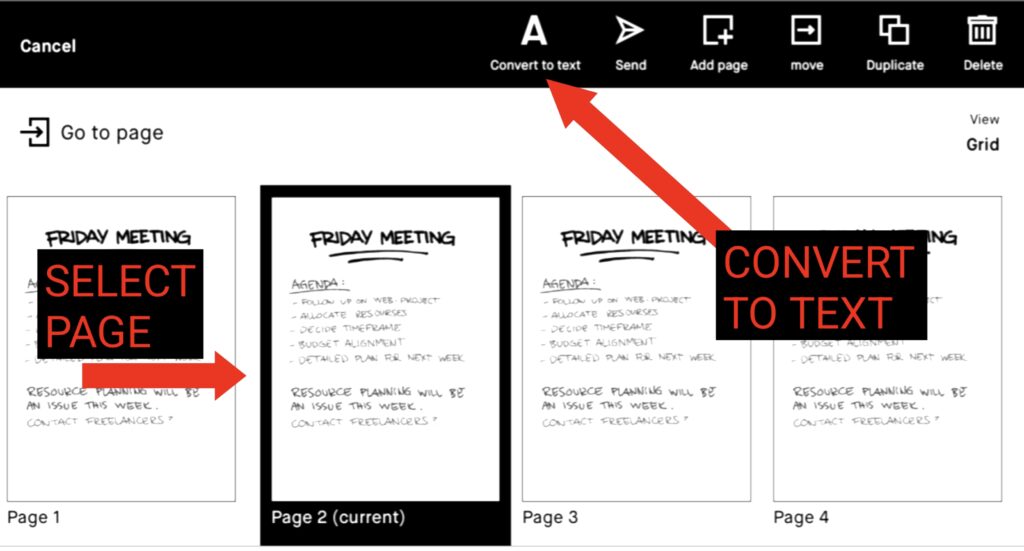
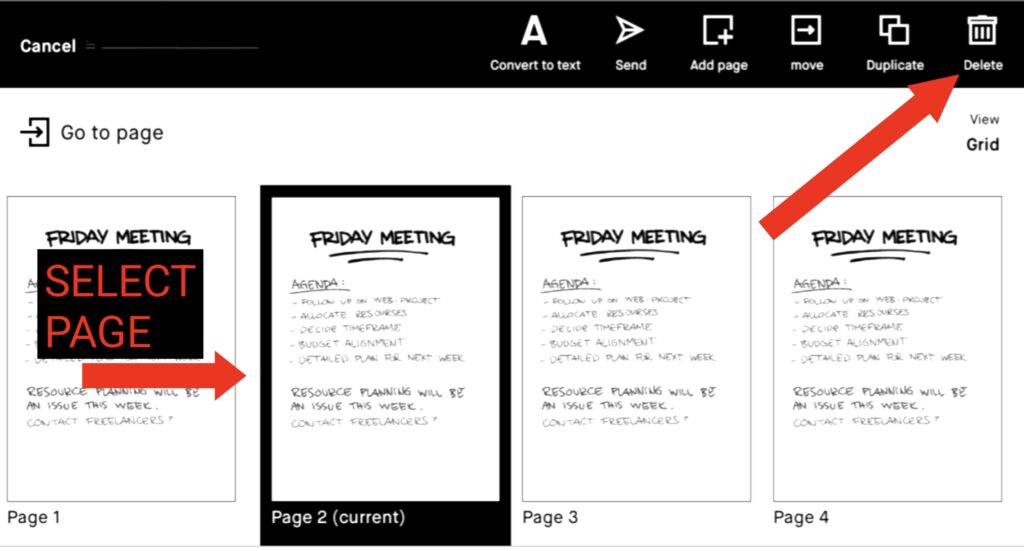
You can also convert multiple pages to text at once, here is how –
- Go back to grid view
- Select pages by holding them for a few seconds
- Then you will see multiple options at the top for modifying the page
- After that select the option – “Convert to text”
Can reMarkable undo convert to text?
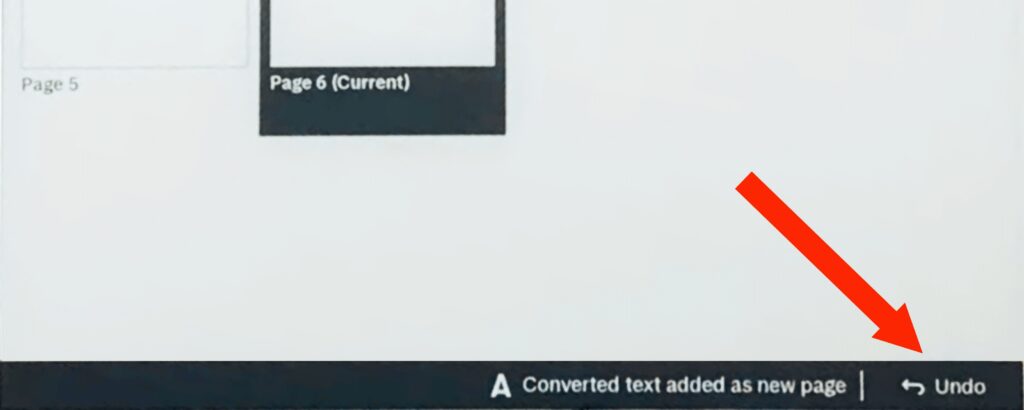
Yes, you can undo convert to text on remarkable tablets. When you convert a handwritten page, at the bottom of your tab you get an undo option, just tap on that to undo your handwriting.
Does reMarkable 2 convert handwriting to text without connecting to a network?
No, the reMarkable 2 requires an internet connection to convert handwriting to text. The device uses a cloud-based services to perform the (OCR) Optical Character Recognition and conversion process. So, without a network connection, the conversion feature will not work.
How do you delete a page on reMarkable 2?
If you want to delete a page or multiple pages at once press and hold the pages for a few seconds to select, then you’ll get some options at the top of the screen, tap the delete icon, and then hit the confirm on the popup option.
reMarkable convert to text showing – “Unknown error”
If you are getting error messages like “Unknown Error” or “Unable to convert that many notes” while trying to convert handwriting to text, there may not be only one reason to it. so I suggest you try the following solutions and check if it solves the issue.
1. Converting Way Too Many Pages
You may face the unknown error if you try to convert handwriting of way too many pages at once. My suggestion is – instead of converting too many pages at once, reduce these pages into smaller batches then convert to avoid any issues.
2. Check your Wi-Fi connection
Handwriting to text conversion needs a network connection, so if you are not connected to a proper Wi-Fi connection, fix that first, then try again.
3. Restart the device
Sometimes you may get an error while using convert to text on reMarkable e-reader, this is because of minor glitches in the system, you can fix this by refreshing the system, which can be done by doing a reboot. (simply switch off the device and restart then try the convert to text feature again)
4. Update your device
Outdated software can cause issues like this, Make sure your reMarkable device is running the latest software version. Bugs and issues like this often get fixed by software updates. Apart from this, it’s always good to have the latest software.
5. Reset your device
If nothing above works for you, you should try resetting your device. This can fix any other glitches that may be causing the error.
Note: Resetting your device will erase all data, so make sure to back up important notes and files before doing this.
After the reset, set up your device and try the handwriting-to-text conversion.
Bonus Tips for accurate handwriting recognition
Here are some tips to follow, this way you’ll have better accuracy in converting handwriting to text.
1. Clear and consistent writing
The reMarkable 2’s converting to text feature is quite effective but it works better when your writing is clear and consistent in size. Its better to avoid too cursive and styled handwriting as it may be difficult for the system to recognize all the characters.
2. Write in a straight line
Writing in a straight line helps the device more accurately differentiate between words and characters. It helps the process of converting text with fewer errors. You can add a lined background to write on.
Sometimes reMarkable tab may not recognize the spaces or paragraph changes, and then you have to manually change them after the text has been converted.
FAQ
Does reMarkable recognize cursive handwriting?
Yes, the reMarkable can recognize cursive handwriting, but the accuracy depends on how neat and consistent your writing style is. If you write like a doctor’s prescription then it will show error. Writing with moderate spacing and clear letter shapes gives the best results.
Does handwriting-to-text cost extra?
Yes. The handwriting-to-text feature is part of reMarkable’s Connect subscription, which is a paid plan and it costs $3 per month. Without an active Connect subscription, you cannot use text conversion or cloud storage features.
Is there a limit to how many pages you can convert?
There is no limit but converting too many pages at once may trigger errors like:
- “Unable to convert”
- “Unknown error”
The handwriting to text feature is quite useful, if you love writing on your reMarkable tab. If you have any queries you can drop a comment below. I hope this guide helped.
Related Articles
reMarkable 2 VS reMarkable Paper Pro